


































Recent Searches

Does CaptionCall Work on a Cell Phone? Is It Really No Cost?

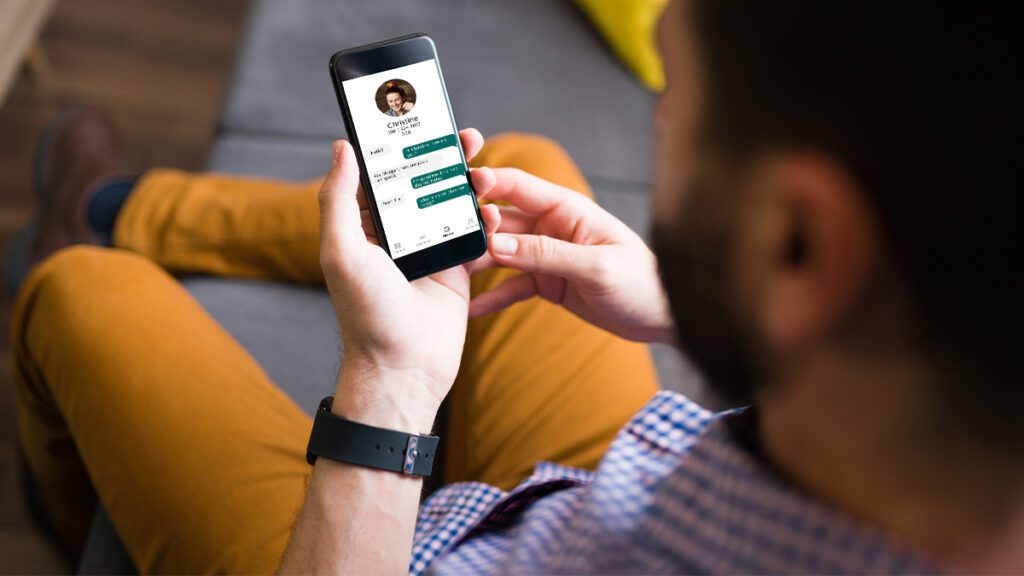
Man uses CaptionCall Mobile app on his smartphone while sitting on couch.

Call captioning is much like closed captions or subtitles on your TV or computer. It is also called assistive captioning. You can use it on a landline phone designed to support call captioning, and there are a variety of apps that give you the benefits of call captions on a mobile phone too.  

For example, you can get call captioning on your mobile device with the CaptionCall Mobile app. 

If you have hearing loss and require captions to use a phone effectively, you can get call captioning at no cost. That applies whether you use a landline phone, a cell phone, or both. 

What is call captioning? 

Call captioning is an internet-based relay service officially known as Internet Protocol Captioned Telephone Service (IP CTS). If you have hearing loss that that makes captions necessary to use the phone effectively, you can use it at no cost in the U.S through a Federal Communications Commission (FCC)-authorized IP CTS provider. 

How call captioning works 

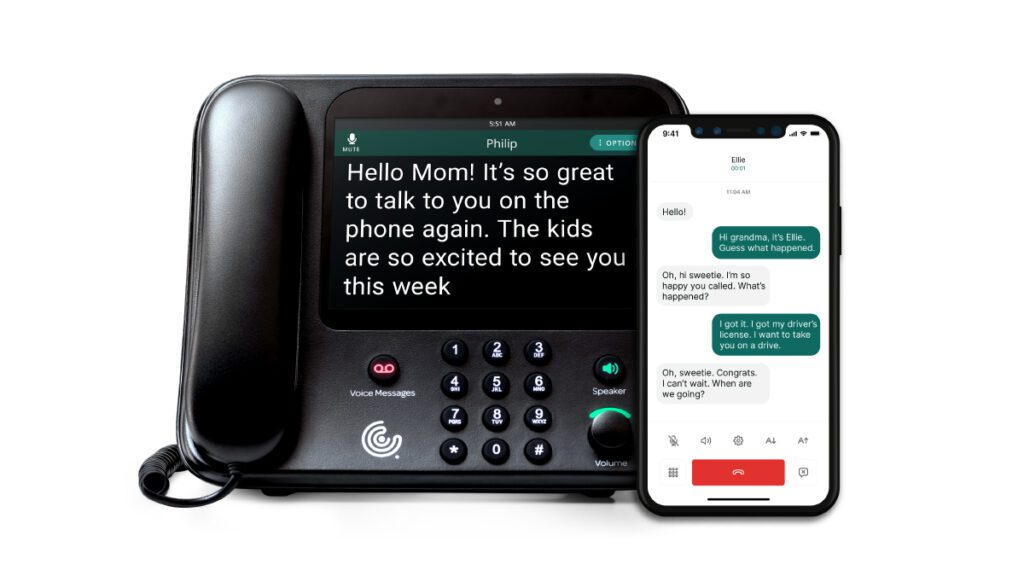
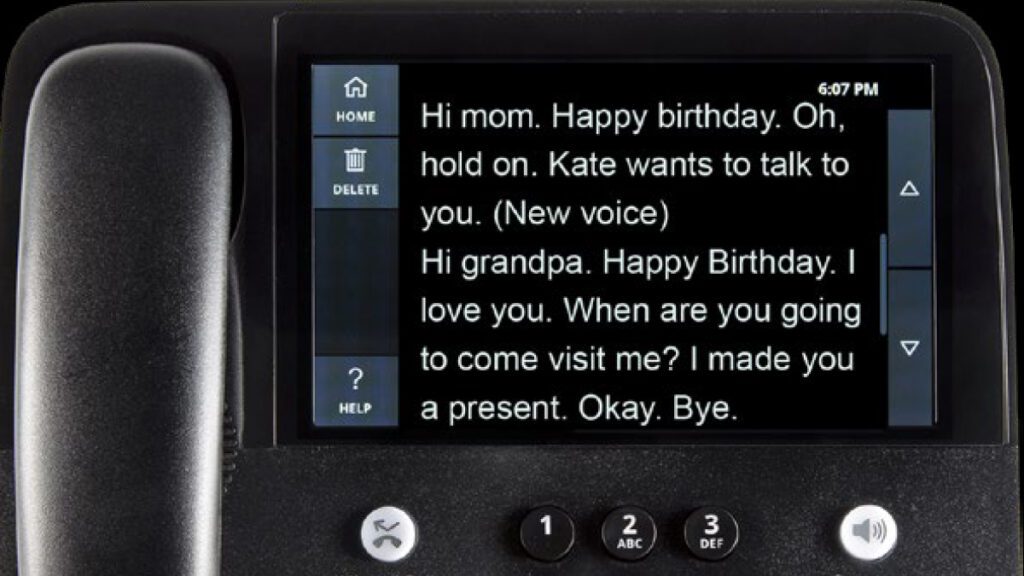
Call captioning works by turning the spoken part of a phone conversation into easy-to-read captions that display on your cell phone screen or the screen on a specially designed landline phone. One or both sides of the conversation are captioned for the person using call captioning. The best captioning services and apps work in real time. That keeps conversations flowing at a natural pace.  

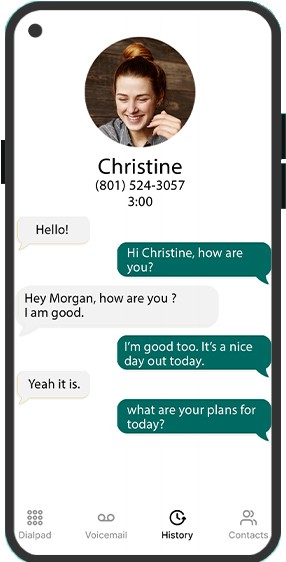
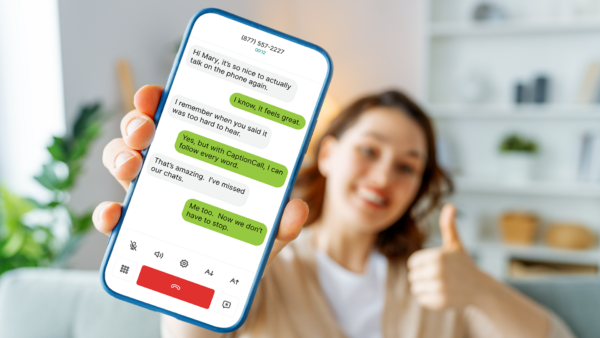
When using call captioning, you see a caption of what the person on the other side of the line says as they speak. Depending on the app or phone service you use, captions may be black text on a white screen, white text on a black screen, or look more like text messaging. If you use CaptionCall Mobile, each side of the conversation displays in a colored text bubble.  

Smartphone screen displaying example captioned call on CaptionCall Mobile app.Does call captioning work on any cell phone? 
There are a variety apps that provide call captioning on virtually any smartphone.  

Some cell phone operating systems let you turn on live captions and automatically see captions for calls, videos, and voice mails. Some enable captions only for video and other media.  

Try it for yourself, look for “Live Captions” your phone’s Accessibility settings.  

Note that live captions may not be as sensitive or accurate as an app specifically engineered for phone calls.  

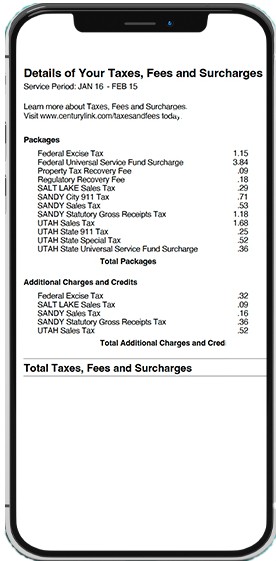
Smartphone screen displaying example bill.Is Call Captioning no cost? 

If you have hearing loss that necessitates the use of telephone captions to talk on the phone, you can get call captioning at no cost through an FCC-authorized IP CTS provider. The U.S. federal government manages a fund to cover the cost for FCC-certified services.  

Before you can use an FCC-certified service on your home phone or cell phone, you need to create an account. When creating the account, you self-certify that you’re hard-of-hearing and need call captioning to reliably use the phone. 

Captioned calls bill to the FCC thanks to a provision of the Americans with Disabilities Act (ADA). As part of the ADA, the U.S. government established a fund to provide call captioning service at no cost to people who need it. 

The funds the FCC uses come from surcharges on all telephone bills. You contribute to this important service every time you pay a phone bill.  

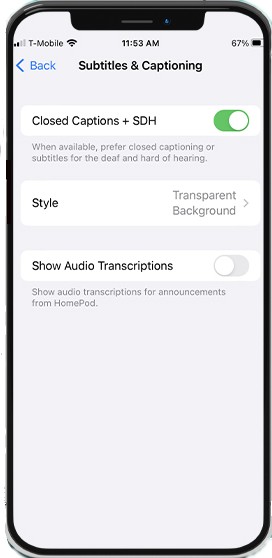
Smartphone screen displaying settings page titled Subtitles & Captioning.What are the benefits of Call Captioning? 

If you have hearing loss, you can more easily have phone conversations with friends and family using call captioning. You don’t miss crucial parts of the conversation or have to ask the person you talk with to repeat themselves or speak up. You’re empowered to use the phone and can communicate with your friends and family, customer service, doctor’s office, and make appointments for yourself.  

When you use call captioning, you can also understand conversations more easily. Studies show assistive captioning increases comprehension for people with hearing loss.  

“I used to dread phone calls and now I'm so relieved.”

A CaptionCall Mobile customer review

The best services, like CaptionCall by Sorenson, include a live captioning agent to get the most accurate and near real-time captioning possible. And apps, such as CaptionCall Mobile, use automatic speech recognition (ASR) technology without an agent. Some people prefer the privacy of not having a live agent on the line. 

If you don’t have hearing loss, you can still benefit from closed captions, live captions, subtitles, and call captioning — though you aren’t eligible for FCC-funded call captioning services. If you work or play in loud environments where hearing a call is difficult and want to use captions, try your phone’s built-in accessibility options. There are also no cost apps and paid apps you can try.  

What is CaptionCall? 

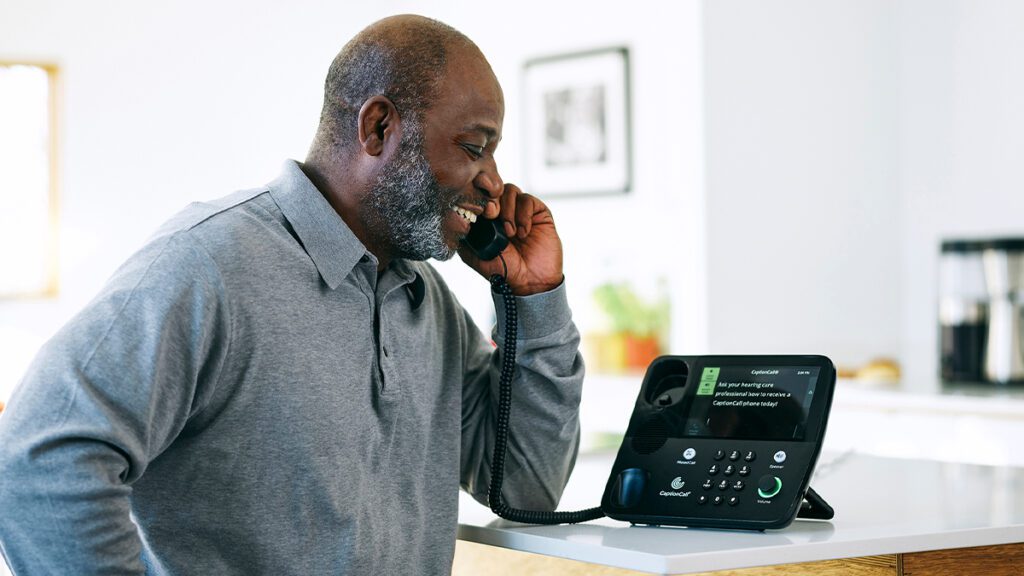
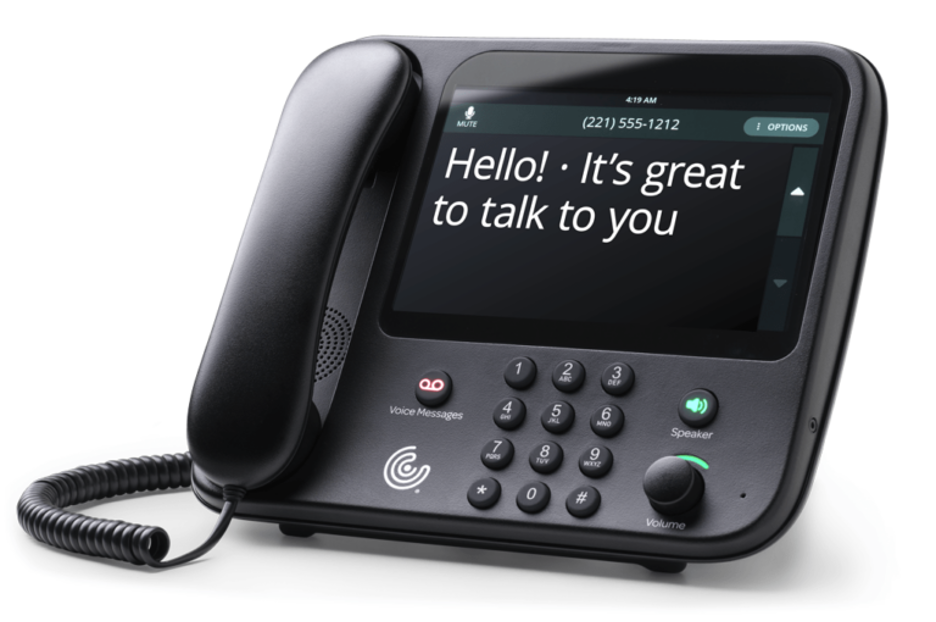
CaptionCall by Sorenson is an FCC-authorized captioned home telephone service. It uses a specific landline phone designed to support call captioning. You get the phone from Sorenson at no cost as part of your CaptionCall service. We even offer to install it and show you how to use it with our popular Red-Carpet Service. When you sign up — and certify you need call captioning to use the phone because of your hearing loss — you can schedule an install and demo of the CaptionCall service and phone.  

The CaptionCall service and phone allows you to read what your caller says and listen to your caller’s voice at the same time, so you don’t miss anything.  

Woman in bright home office sits in front of open laptop looking at her smartphone.

When you make or receive a call using CaptionCall, a live captioning agent automatically connects to your call. The agent uses voice-recognition technology and manual corrections to turn your phone conversation into captions. 

Combining technology and human transcription lets CaptionCall by Sorenson deliver the most accurate captions possible. Sorenson follows strict confidentiality regulations from the FCC.

What is CaptionCall Mobile? 

CaptionCall Mobile is a mobile app that brings call captioning to your cell phone in real-time. You use your cell phone to have natural conversations without any delays or lag. And you can have call captioning anywhere you have mobile data service — you don’t have to depend on Wi-Fi.     

“I'm deaf and can finally answer calls after 30 years of never answering.”

CaptionCall Mobile doesn’t use live agents. Instead, it uses the highest quality automatic speech recognition (ASR) technology available. Some people prefer conversations without a live agent—even though CaptionCall agents never record or share your calls. 

Just like with CaptionCall, CaptionCall Mobile also gives you access to full call transcripts in your phone’s history. Only you can access those transcripts.

How Assistive Captioning Benefits Adults with Age-Related Hearing Loss

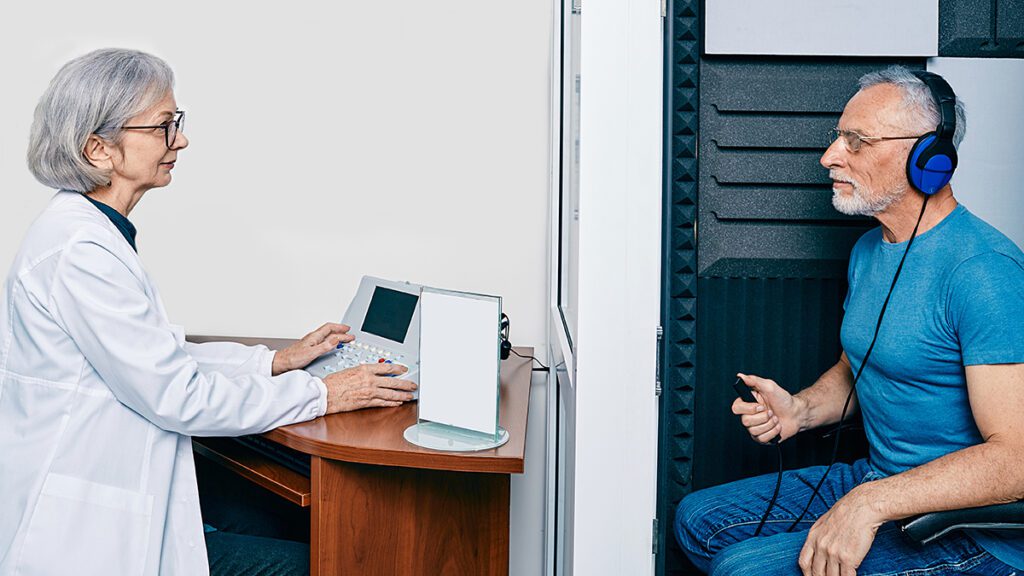
Audiologist administers hearing test to older man.

Roughly 25% of Americans aged 65 to 74 have age-related hearing loss. After the age of 75 that number increases to 50%.1 Age is the strongest predictor of hearing loss in adults, and age-related hearing loss affects quality of life more than most people realize.2 One of the effects of hearing loss is that when people with hearing loss struggle try to hear, their ability to comprehend and remember speech decreases. The increased effort to understand is a hidden effect of hearing loss — one that’s critically important in understanding the challenges that anyone with hearing loss deals with.3 One way to help people with hearing loss is with assistive captioning.

What is assistive captioning and how does it help?

Assistive captioning, or closed captioning, is an assistive technology that transcribes speech or speech and sound into written text. Captioning includes:

  • Subtitles that translate spoken words to written content. Subtitles are common for translating one language into another.
  • Closed captions that translate spoken words and contextual sounds and actions into written content. Closed captions are ideal for viewers who have very limited hearing or are Deaf.
  • Call captioning that translates what a speaker says on a phone call into written content. Call captioning requires a phone designed to show captions on a screen or an app that can add captions to a call on a smart phone

Captioning benefits people with hearing loss by:

  • Improving perception, comprehension, and memory, even when there’s background noise.
  • Helping them interpret sounds and speech more clearly and quickly.
  • Helping them understand sounds and speech, sometimes even better than with the use of hearing aids.3

Studies have looked into how captions benefit adults with age-related hearing loss. Four of these studies showed how captions give adults with age-related hearing loss a way to overcome the challenges caused by struggling to hear.

Captions and comprehension

In the one study, researchers asked participants to listen to a list of numbers. The first half of the list was presented without distracting background sounds. The second half was presented with background noise. After participants listened to both halves of the list, they were asked to repeat the entire list of numbers.

Researchers found that listeners tried so hard to hear the numbers said with background noise that most forgot the beginning of the list.4

This study showed that adults with age-related hearing loss can have a harder time understanding sounds with background noise. The conclusion was that background noise interferes with comprehension and memory. The findings present a strong argument for ensuring aging adults with hearing loss have access to tools, such as assistive captioning, to help them struggle less and better understand sound and speech.

Seeing and hearing are key

Researchers in the second study had participants listen to sentences that varied in complexity. They found that older adults with hearing impairments struggled with comprehension and recall of sentences when spoken quickly, even though they accurately perceived what was said.5

The study shows that perception, comprehension, and memory of speech improve for adults with age-related hearing loss when they can see and hear what’s said.

Other studies show that even just a one decibel (dB) improvement in signal-to-noise ratio corresponds to a 10% increase comprehension and memory.3

The improvement in this second study equaled a speech-to-noise ratio improvement of as much as 15 dB, which led to a significant increase in comprehension and memory.

Words and sounds work together

In a third study, researchers showed participants two videos with captions and sounds. In the first video, the captions and sounds matched. In the second video, the captions and sounds didn’t.

The results of the study determined that sounds and words (such as captions in a conversation) complement each other to help listeners understand sounds better and to hear sounds more clearly and quickly.6
Series of hearing aids in white, grey, and various skin tones.

The benefits of captions versus hearing aids

In the last study, researchers determined that real-time closed captioning of speech in television improves comprehension for adults with hearing loss. The study also showed that the benefits of captions outweigh the benefits of hearing aids. In fact, hearing aids provided no benefit to recognizing words when captioning was available.7 This study shows just how important captions are for hearing loss.

Assistive captioning for phone conversations

Call captioning, like CaptionCall, transcribes phone calls in real time so users can read the conversation. Call captioning, such as that provided by CaptionCall, provides advanced call captioning for phone calls. Assistive captioning for phone calls lets anyone with hearing loss necessitating call captioning better comprehend, remember, and actively participate in conversations, even when there’s background noise. Call captioning is also available at no cost.
Series of hearing aids in white, grey, and various skin tones.

Learn more about how CaptionCall by Sorenson and CaptionCall Mobile can help anyone with hearing loss, including adults with age-related hearing loss.

Sources

  1. Quick Statistics About Hearing, Balance, & Dizziness
  2. Declining Prevalence of Hearing Loss in US Adults
  3. Text Captioning Buffers Against the Effects of Background Noise and Hearing Loss on Memory for Speech
  4. Rabbitt, P. M. (1968). Channel-capacity, intelligibility and immediate memory. Q J Exp Psychol, 20, 241–248.
  5. Wingfield, A., McCoy, S. L., Peelle, J. E., Tun, P. A., Cox, L. C. (2006). Effects of adult aging and hearing loss on comprehension of rapid speech varying in syntactic complexity. J Am Acad Audiol, 17, 487–497.
  6. Frost, R., & Katz, L. (1989). Orthographic depth and the interaction of visual and auditory processing in word recognition. Mem Cognit, 17,302–310.
  7. Gordon-Salant, S., & Callahan, J. S. (2009). The benefits of hearing aids and closed captioning for television viewing by older adults with hearing loss. Ear Hear, 30, 458–465.

How to Turn on Closed Captioning for Streaming Content

Woman in living room watches television with subtitles on.

Closed captions and subtitles show the dialogue and/or audio portion of a program as text on your TV, computer, or phone screen. They’re an important usability aid whether a viewer is hearing, hard-of-hearing, or Deaf. A 2022 survey found that 50% of Americans regularly use subtitles when watching content.1

The Federal Communications Commission (FCC) requires closed captioning on TV, but how do you turn on closed captioning for streaming services and devices?2 It’s not hard. And, if you’re in a typical American household, you watch 5.4 streaming services a month. So, you may need to set up captions multiple times.3

In this guide, we show you how to turn captions on across the most popular streaming services, Pay TV  providers, and streaming devices.

Once you get captions set up, you won’t miss a moment of dialogue even if you’re hard-of-hearing or Deaf, or when the dog barks, the kids holler, or you need to jump on a phone call.

Read on to find out how to turn captions on or jump straight to your provider or service.

Netflix | Amazon Prime Video | Hulu | Disney+ | HBO Max | Paramount+ | Peacock | Apple TV+ | YouTube | Xfinity | Spectrum | Cox | DirectTV | DISH | Amazon Firestick | Chromecast | Roku | Apple TV

What are closed captioning, subtitles for the Deaf and hard of hearing and subtitles?

Closed captions and subtitles are common terms. People often use them interchangeably, but they are not the same.

  • Closed captions show words on the screen for spoken dialogue, intention, and tone, as well as descriptions of unspoken sounds, which creates full context for the viewer.
  • Subtitles simply translate and show spoken dialogue and are targeted at users watching content in a language other than their native language. They are a good alternative when full closed captions are unavailable.
  • Subtitles for the deaf and hard of hearing (SDH) combine subtitles and closed captions. SDH is often available when closed captions aren’t.

Now let’s dive in to how to turn on closed captions on TV shows and streamed content.

How to get closed captions on TV video streaming services

Video streaming services are the most popular way to watch TV content today. 78% of U.S. households subscribe to Netflix alone.4 Whether you use Netflix or the next most-popular service, Amazon Prime Video — or both — here’s how to turn on closed captioning.

Keep your eyes open for this symbol or this one as you set up captions.

Woman in living room watches television with subtitles on.

Turn on captioning for Netflix

Getting started with Netflix closed captions or subtitles on any device is easy. Simply follow the steps below.

Hint: To turn captions on for all shows, start with an adult profile (not a kid’s profile) and pick a show with a maturity rating for teens and older. Then watch for at least 2 to 3 minutes to save your preferences for future shows.

For mobile phone, tablets, and Mac or PC computers:

  • Open Netflix.
  • Pick a show to watch.
  • Push play.
  • Tap or click on the screen.
  • Select audio & subtitles.
  • Turn on subtitles or English (CC) for closed captioning.

For smart TVs, Blu-ray players, or gaming system, and streaming media player:

  • Open Netflix.
  • Pick a show to watch.
  • Push play.
  • Press your remote’s up or down arrow to select audio & subtitles.
  • Turn captions on or off and select your preferred language.

On Apple TVs:

  • Open Netflix.
  • Pick a show to watch.
  • Push play.
  • Swipe down on the remote (Apple TV 4 and 4K) or hold down the remote’s center button (Apple TV 2 or 3) to select Audio & Subtitles.
  • Turn captions on or off and select your preferred language.

Netflix offers up to seven language options for subtitles and closed captions. They depend on your location and language settings. If you don’t see your preferred language, subtitles or closed captioning isn’t available for that language yet.

Using Amazon Prime Video with captions

Amazon Prime Video is Amazon’s on-demand streaming service. Up to 66% of U.S. households subscribe.5 All Amazon Prime members get free access to Amazon Prime Video. Available content includes movies, TV shows, sporting events, and the ability to combine Prime Video with other popular streaming services, such as HBO Max, Paramount+, and Discovery+.

Adding captions or subtitles to Prime Video is quick and simple from the Prime app. 

First select the language you want to see captions or subtitles in:

  • On a show, select the overview screen.
  • Select subtitles.
  • If subtitles are available in your language, you’ll see the closed caption or subtitles symbol.

 To see subtitles or closed captions for a show that supports them:

  • Open the Amazon Prime Video app.
  • Select a show.
  • Push play.
  • On the playback menu, select the closed caption or subtitles symbol.
  • You may need to hit the enter button on your remote or controller to access the playback menu.
  • Turn subtitles on (or off) and select a language.

Amazon Prime Video and many other services give you the added benefit of letting you modify the size and color of captions and subtitles. You can do that under the Subtitles Settings menu. 

Access closed captions for Hulu

Hulu is another favorite streaming service of U.S. households with more than 40 million subscribers.6

To use subtitles or closed captions on Hulu-supported TV or TV-connected devices where available, simply:

  • Select a show.
  • Push play.
  • Press the up button or swipe down on your remote to open the playback bar.
  • Press or swipe up to open the settings menu.
  • Under captions & subtitles, select on or off.

On supported mobile devices:

  • Select a show.
  • Push play.
  • Under subtitles & captions, tap auto, on, or off.
  • Tap the X to save your preferences and return to your show.

On supported mobile devices:

  • Select a show.
  • Push play.
  • Click to enter the subtitles & captions menu.
  • Choose a language for your captions or select on.

A nice benefit of subtitles and closed captions on Hulu is that you can choose English or Spanish, when available, format captions, and each profile can manage captions independently. They can also be turned on and off based on the content being watched.

Disney+ with closed captions

Disney+ is every streamer’s one-stop shop for shows from Disney, Pixar, Marvel, Star Wars, and National Geographic. It has 152 million subscribers around the globe.7

To keep up with its global audience, Disney+ supports closed captions and subtitles in up to 28 languages.

Woman in living room watches television with subtitles on.

Setting up subtitles and closed captions on Disney+ is straightforward. Here how to do so on any device:

  • Select a show.
  • Push play.
  • Open the audio & subtitles menu icon (usually located in the top right corner of the screen. Actual location depends on the device).
  • Choose the language you want to see captions in.

It’s that simple to watch Disney+ content with closed captions.

You can also format captions and subtitles for Disney+ on a variety of devices, including those running iOS and Android, Smart TV, streaming devices, the web, and Xbox or PlayStation.

Subtitles with HBO Max

About 73.8 million people worldwide subscribe to HBO and HBO Max.8

Today, subscribers can only access closed captioning in English. And turning captions on for HBO Max varies slightly based on the device you’re using. For details on your specific device, visit the HBO Max Help Center. Here’s the basic process.

  • Start watching a show,
  • Click the screen or the Select button on your remote.
  • Select the Audio and Subtitles icon.
  • Choose English CC.
  • Click X or press the back button to save your changes.

If you want to change the captioning style, choose your profile, then Settings, choose Closed Captions and/or Manage Preferences.

Paramount+ captions

Paramount+ supports closed captions. Turning them on varies depending on the device you’re watching Paramount+ content on. Regardless of device, you turn them on through the Accessibility menu. Look for Subtitles and Captioning, Subtitles, Captions, Closed Caption, or Caption Mode to turn closed captioning on.

How to use subtitles with Peacock

Peacock is NBC’s streaming app. It offers free and paid plans. More than 20 million people watch Peacock each month.9

You can access subtitles on Peacock, but not true closed captions. Find out how to use subtitles with Peacock.

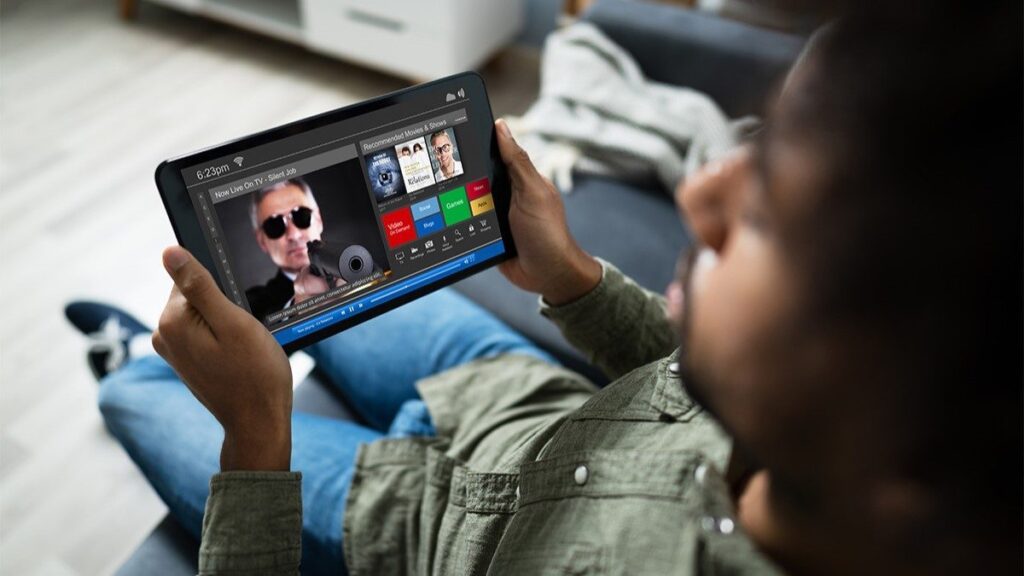
Man looking at streaming service menu on tablet screen.

Apple TV+ with subtitles

Apple TV+ is Apple’s streaming service. You can watch it on Apple devices, the web, and through other services and streaming devices.

Apple TV+ supports only subtitles for individual shows if available. You can turn closed captions and SDH on by default and see them if/when available for specific content.

Seeing captions on YouTube and YouTube TV

You might think of YouTube as simply a repository for videos of any and every kind, but it also offers YouTube TV, a popular paid TV streaming service for more than 100 channels, including ABC, CBS, NBC, ESPN, and AMC.

Seeing closed captions on YouTube and YouTube TV content depends on the availability of captions on the individual video or channel you watch.

Screenshot of YouTube video with closed captioning turned on.Screenshot of YouTube video with closed captioning turned on.

Turn Captions on for YouTube

YouTube captions and subtitles are set up the same way, regardless of the device you watch on. If you watch from a YouTube account you created, captions will be in the preferred language you select for your account. Click to accept marketing cookies and enable this content

On your computer:

  • Select a video.
  • If the CC icon shows in the lower right corner, captions are available. Click the icon to turn captions on.

On an Android or IOS device:

  • Select a video.
  • Tap the video player.
  • If the CC icon shows, captions are available. Tap the icon to turn captions on.

On TVs and game consoles:

  • Select and play a video.
  • Hit Pause.
  • Tap the CC icon.
  • Choose a language for captions.
  • Select Caption Style.
  • Customize settings if desired.

You can customize caption format and language for YouTube videos.

Turn captions on for YouTube TV

YouTube TV is an app. Turning captions on for YouTube TV is similar to turning them on for YouTube.

On your computer or Android device:

  • Select a video.
  • Select Play.
  • If the CC icon shows in the progress bar or under More in the upper right corner, captions are available. Click the icon to turn them on.

On an iOS device:

  • Select a video.
  • Select Play.
  • If the CC icon shows, captions are available. Select the icon to turn them on.

If you watch on-demand or recorded videos on YouTube TV that offer captions, you can format them; for live TV, you can’t.

Pay TV over cable captioning

Cable isn’t as popular as streaming services: just 56% of U.S. households have a cable box compared to 78% who subscribe to Netflix, Amazon Prime Video, or Disney+.9 But 56% of U.S. households is nothing to sneeze at.

If you get Pay TV by cable through Xfinity, Spectrum, or Cox, here’s how to turn closed captions on and off, as well as how to customize them to your preferences.

Accessing captions on Xfinity

If you use Xfinity from Comcast for your Pay TV services, you can access closed captioning with the Voice Remote, during a program, or through the XI Accessibility Setting menu.

With your Voice Remote:

  • Hold down the microphone button.
  • Say “Closed Captions” or “Captions.”

During a program:

  • See accessibility setting for the program under the transport bar or press the down arrow or the OK button to access the accessibility buttons on your X1 remote.
  • Press the left arrow button to select Closed Captioning (CC).

Using the X1 Accessibility Setting menu:

  • Push the B button on your remote to access Accessibility Settings.
  • Press OK to turn captions on or off.
  • To customize your Xfinity closed caption options — such as size and color — go to Closed Captioning Options.

Learn more and see how to change the font size, color, and formatting of captions.

Setting up closed captions on Spectrum

Spectrum from Charter is the second largest cable TV provider in the U.S.

Follow these simple steps to turn captions on or off for Spectrum content.

  • Press Menu on your remote control.
  • Use the arrow buttons to go to Settings & Support.
  • Press OK/Select.
  • From the highlighted Accessibility section, choose:
  • Closed Captioning Settings to choose the style and color for your captions.
  • Highlight Save and press OK/Select to save your changes.

Learn more and deep-dive into Spectrum’s closed captioning settings.

Watching Cox Cable TV shows with captions

Cox Contour TV is a cable service from Cox Enterprises. Cox also offers a streaming device that works with any TV and provides access to Netflix, Prime Video, Hulu, Disney+ and other streaming services.

To turn captions on for your Cox Contour TV or Stream Player, on your Cox remote control:

  • Turn your TV on.
  • Press the CONTOUR button to see the Main Menu.
  • Highlight Settings (the gear icon), press OK to access the Settings menu.
  • Highlight Device Settings, press OK.
  • Do one of the following:
  • Use the voice command, “Closed Caption” to turn captioning on or off.
  • Press the down arrow to display the playback control bar and select the closed captioning shortcut.
  • Go to the Accessibility Menu by pressing the B button, highlight Settings, and scroll down to Accessibility Settings.

You can adjust the formatting of closed captions on your Cox services.

Seeing captions with others cable TV providers

If you’re not using one of the providers already covered, here are a few more Pay TV providers and how to set up captions through their services.

Optimum from Altice USA (formerly Suddenlink)

Accessing captions with Optimum cable service depends on the device you’re using. Find your device and see how to turn on captions on Optimum’s website.

Mediacom

Mediacom lets you turn closed captioning on or off for all shows or a single show while you’re watching. Just press the Info icon and select On or Off for Closed Captioning. Mediacom also lets you choose how closed captions are display.

Getting captions with pay TV by satellite

Turning on closed captions on subtitles on DirecTV or DISH is simple and straightforward.

Turn on closed captioning for DirectTV

DirectTV is an AT&T brand. It’s still used by many subscribers, but use is declining. It lost 300,000 subscribers in the first 3 months of 2022 alone.10 Even so, it’s still the leading satellite choice for Pay TV.

If DirectTV is your go-to choice for watching content, it’s easy to turn subtitles on and off. Simply follow these steps.

  • Press the INFO button on your remote.
  • Scroll to the right and select CC.
  • Select Closed Captioning to turn captions on or off.

Watching DISH content with closed captions

DISH, from the DISH Network, is the second most popular satellite TV provider in the U.S. DISH makes enabling captions a simple two-step process.10 Just:

  • Press the red or Options button on your remote twice.
  • Select the CC icon to turn on or off closed captioning.

You can also adjust your caption settings and set up other usability options, including audio description, screen magnification, and text to speech.

Using captions on streaming devices

A streaming device, aka streaming media player, is a physical piece of hardware. It connects to your TV through the HDMI port and uses your internet connection to stream online content to your TV, making it possible to access all your favorite services in one location.

Here’s how to turn captions on and off for with streaming devices.

Captions for Amazon Fire TV or Fire TV Stick

Amazon Fire TV and the Fire TV Stick are among the most popular streaming media players. In 2021, Amazon said more than 50 million people used Fire TV each month.11

Fire TV devices let you see captions on shows that support them. Here’s how to turn captions on or off.

  • Select a video.
  • Press play.
  • Press the Menu button on your Fire TV remote or in the Fire TV App.
  • Choose Subtitles.
  • Select the Off button under Subtitles.
  • Select from the options on-screen to turn captions on.
  • Press the Menu button again to return to video playback with subtitles on.

Watching Google Chromecast and Google TV Content with closed captions

Chromecast is Google’s media streaming player. It uses your phone to control your TV and deliver content, essentially making your TV a smart TV. The technology is also built into some Google TVs.

Google TV is a complete operating system and can include Chromecast built in.

Adding captions to Google TV or Chromecast is fast and easy:

  • On the Google TV home screen, go to the user profile icon in the top right and select Settings.
  • Select System and Accessibility.
  • Choose Captions.
  • Turn on Display and choose your options.

Roku with captions

You can turn captions for Roku on or off for the device itself or within individual channels that you download. Note that the availability of captions through Roku depends on the service provider offering them.

On your device:

  • Press the Home button on the Roku remote.
  • Select Settings.
  • Select Accessibility or Captions if Accessibility isn’t shown.
  • Select Captions mode and choose:
  • On replay
  • On mute
  • Off

Find out how to customize closed captions for Roku to use them only with specific channels and more.

Captioning on Apple TV and Apple TV 4K

Not to be confused with Apple TV+ or the Apple TV app on your phone, Apple TV is Apple’s physical streaming media player. It’s also the name for the Apple TV app.

You can turn closed captions on for any Apple solution. Here, we cover turning them on for the Apple TV streaming device.

  • Select a video.
  • Hit play.
  • On your streaming device press the button that brings up the video timeline.
  • Use your Siri Remote or Apple TV remote to swipe up and select the Subtitles button. Or use your smart TV, streaming device, or game console remote to navigate to the Subtitles button.
  • Choose the subtitles that you want.

Closed captions aren’t just for streamed content

Now that you’re set to take advantage of closed captioning for streamed content, keep in mind that you can use them other places as well. Amazon Echo Devices with screens support closed captions and call captioning. Google Nest also supports closed captioning.

And if you’re Deaf or hard of hearing and require captioned phone calls, you can access call captioning on a landline or cell phone at no cost to you.

Happy watching! 

Sources

  1. Survey: Why America Is Obsessed with Subtitles
  2. Closed Captioning on Television
  3. Americans Are Adopting Ad-Supported Streaming Services at a Faster Rate Than Non-Ad Subscription-Based Streaming Services, Signaling a Shift in the Market
  4. Top SVOD services in the U.S. 2022 | Statista
  5. Americans Are Adopting Ad-Supported Streaming Services at a Faster Rate Than Non-Ad Subscription-Based Streaming Services, Signaling a Shift in the Market
  6. Hulu Revenue and Usage Statistics (2024)
  7. Disney Plus Statistics 2025 – Subscribers & Revenue Data
  8. Disney+ and HBO Max show streaming strength against Netflix
  9. Cord Cutting – Streaming Subscriber Vs Cable: Statistics and Trends in 2024
  10. Latest Cord Cutting Statistics, Facts and Trends
  11. Stories worth talking about
This site is registered on wpml.org as a development site. Switch to a production site key to remove this banner.