









































-
VRS

-
CaptionCall
-
Enterprise
-
Provider
-
Resources
-
Company


Sorenson Uses Cookies
Cookies are small text files websites send to your browser to remember information about your visit. They make our site work properly and help with security. When you allow cookies, you will have the best experience on our site — you can use tools such as chatbot for support and access other relevant products and services.

Using Sorenson VRS for Zoom with the Sorenson Web App

No Value (acf:field_669fe7fdb55ef)
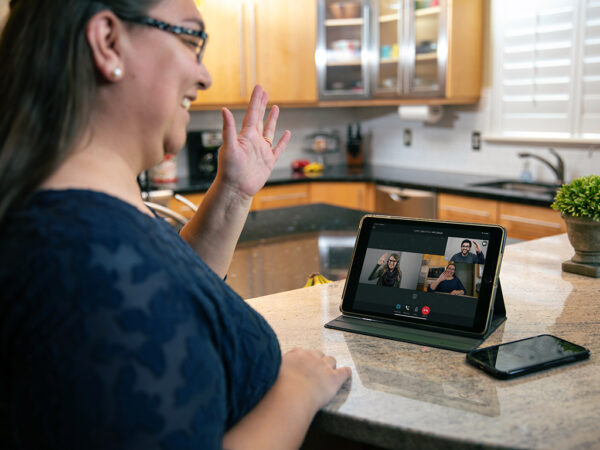
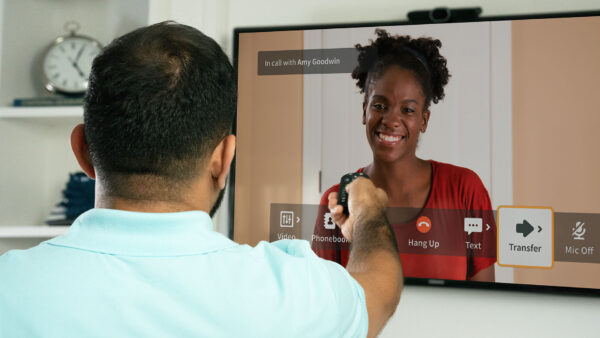
If you have a Sorenson VRS account, you can invite a Sorenson VRS interpreter into your Zoom meeting. The simplest way to do that is with the Sorenson Web App.
- It does not matter if you are the meeting host or not.
- You don’t need to download anything, either!
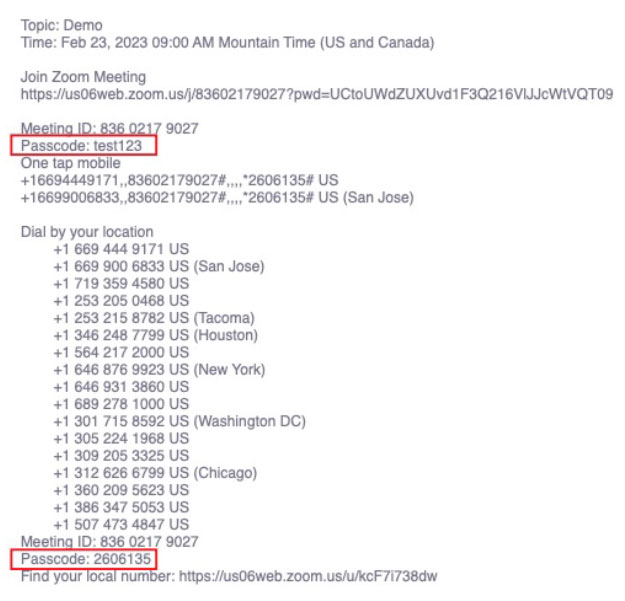
- The meeting host must have a paid Zoom account. (If their meeting invitation has a “Dial by your location” list with phone numbers, you’re good to go.)
How to use Sorenson VRS for Zoom with the web app
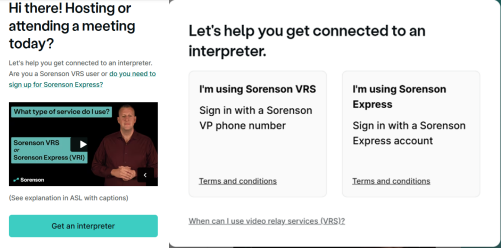
In your web browser (Chrome, Firefox, Safari, etc.), go to sorensonprod.com/sign-in and click Get an interpreter.
In the popup window, click I’m using Sorenson VRS.
Then sign in with your Sorenson phone number and password.
Related articles
Deaf Community
News
News and updates about Sorenson VRS products and features and the Deaf community
Hearing Health Providers News
Hearing loss news and trends for hearing health professionals
Hard-of-Hearing
News
News and updates about living well with hearing loss and getting the most out of CaptionCall and CaptionCall Mobile
No Value (acf:field_67911dacbb423)
On the next screen, enter your Zoom meeting information:
- the Zoom meeting link from your invitation
- any of the 10-digit phone numbers from the Dial by your location list on your meeting invitation (Don’t include the +1 at the beginning of the number.)
- the Meeting ID will auto-fill when you paste the meeting link.
- the meeting passcode if there is one
Select English or Spanish then click Send meeting invite.
In your Zoom meeting, tet the host know you invited an interpreter.
- If the host has enabled the Waiting Room feature on Zoom, they need to give the interpreter access twice: once for video and once for audio.
- If your meeting doesn’t use a Waiting Room, the interpreter will use the meeting passcode to access audio.

No Value (acf:field_67911d8bbb421)
If your invitation didn’t have a meeting passcode, the interpreter can use your meeting Participant ID (Find it by clicking on the green shield in the corner of your Zoom window), or you can tell them to enter pound/hashtag (#).
More about using passcodes
If the host uses meeting passcodes as their security option, the passcode will show up in the meeting invitation below the link to join and the meeting ID.
If your meeting is using a passcode, we recommend the host enable the Embed passcode in invite link setting, which will allow the interpreter to join the meeting without having to manually enter the video/audio passcode.
If your meeting invitation has two passcodes — one with letters and numbers and another with only numbers — enter the first one when you request an interpreter, and give the interpreter the all number passcode when they join the meeting.
Your Sorenson VRS for Zoom interpreter leaves when you do
If you are using Sorenson VRS for Zoom for a meeting, the interpreter will leave the call when you do. If there are other deaf people in the meeting and you leave before them, they will have to request another interpreter with their own Sorenson VRS account.